

Before hitting the launch button, there is a specific ritual ceremony that occurs before I can enjoy my games, and that ritual takes place in the settings. For many casual players, this may not be an issue as they want to clear the main menu as quickly as possible. But for a lot of us, everyday players in Canada, we must perform the ritual at the options menu to help us have the best gaming experience possible.
The modern games nowadays are produced in a way that it is playable to even a toddler with an iPad but the default settings that come with these games are often not in the perfect form for gaming. Therefore to get the best or the soul of the game, there are necessary toggles that need to be fixed.
Why UX Matter More Than People Think
Taking some minutes to adjust the settings or the UX of a game based on my personal preference is not just to make power moves. It is more about how much I can adjust the interface and navigation of a game till I get the best version of it.
This same psychology goes beyond regular gaming alone and extends to other types of entertainment like gaming on online casinos. That is why you’ll find that critics put more emphasis on interface, graphics and game responsiveness; they know that this is what players are genuinely after. As an example, the large font size and restricted colour palette in sites like Stardust online casino increases legibility and limits distracting visuals. These aren’t the first features that come to mind when deciding where to play, however, they have a surprising impact on whether players return for more.
The upside of gaming is that unlike online casino websites, you can adjust your preference to a better degree. Doing so comes with several benefits like:
- Improve performance on games
- Reduce or prevent eye strain
- Make navigations and controls feel smoother
- Help focus on the gameplay with no distractions
Toggles I Change When I Start a New Game
- Motion Blur (Off)
If there is something I can never cope with when playing a game, it is motion blur. Why is that even an option? Theoretically, it is designed to look like human eyes in motion or to mask lower frame rates on consoles. But, in reality it looks like an oil film on the screen.
I personally would love to see the textures I can get on a high-end GPU or a console, I would love to see the grasses, the detail on the costume that a character has on and more. Turning this off increases my visual clarity and makes me appreciate the game graphics better and reduce eye strains during prolonged game play.
- Subtitles (Always On)
For me as a Canadian player, a place where multiple languages come together, I think highly of game subtitles, as this helps me to play the game in a language I understand and also helps me relate to every second of the gameplay.
This also helps me to shut out background noises I am referring to with the audio, fast audio, different accents and also during the night when it’s mandatory to play with low volume. I also adjust the subtitle size too if the game allows, so that I see the words clearly and avoid eye strain.
- Audio Toggles (Music and Dialogues)
Audio toggles are very dear to my heart as they determine to a large extent if I’ll be spending five minutes or an hour on a game.The default audio settings are usually at the highest, 100% for all audio features. This gives off a too loud, headache kind of audio.
So, I drop my music volume halfway and my dialogue to 70% and SFX to 80%. If there is a “dynamic range” or midnight mode option, especially in shooting games, I’ll use toggle that too depending on which MP3 device I’m using at that moment.
- Inverting the Y-Axis
A lot of players that grew up playing early 3D titles like Star Fox will know that the best way to play a game is to invert the Y-Axis. Inverted Y is the easiest way a gamer can actually enjoy the game.
With the inverted Y-axis, I’ll be faced with the problem of pushing up to look down is like constantly pushing your head forward. The default setting is “Non-Inverted” and with a click, I can change it to inverted “Y”-Axis and enjoy my game without stressing my neck.
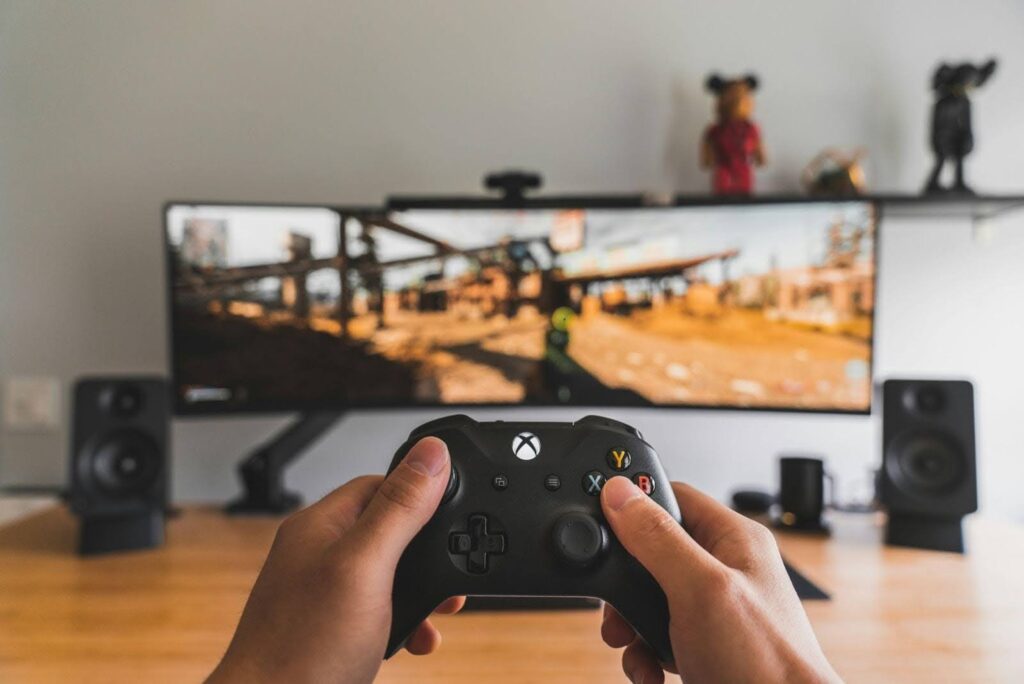
- Field of View (FoV)
Console games usually come with a narrow Field of View (FoV), set at 60-70 degrees. But this would work for players sitting on a sofa and playing on a screen that is, approximately 10 feet away but this would feel very uncomfortable for a desk player like me.
I am usually 1 or 2 feets away from my monitor and a narrow field of view can give me a “tunnel vision” that would drastically affect my gaming experience.
So, I toggle the field of view to at least 90 or a 100. This makes the world of the game come alive and I can directly enjoy that from my screen.This change in field of view gives me better peripheral awareness to combat well, I make faster moves and makes the game feel like Next-Gen instantly.
Final Thoughts
Embarking on a new game is fun. But jumping straight into the gameplay with checking out the settings is something that can cause annoyance and disrupt your gameplay. I personally take less than five minutes to change all the toggles I want before I enter the game.Adjusting these toggles is not a waste of time; it is the necessary shortcut for us as players to get the best gaming experience.